Getting Started with Vault
This guide walks you through installing Vault and completing your first backup from scratch.
Prerequisites
- Unraid 7.0 or later
- At least one storage destination — local path, SFTP server, SMB share, NFS export, WebDAV server, or S3-compatible bucket
1. Install the Plugin
Until Vault is listed in the Community Applications store, install it manually:
- In the Unraid web UI, go to Plugins → Install Plugin
- Paste the following URL and click Install:
https://raw.githubusercontent.com/tinkerologie/vault/main/plugin/vault.plg
- Once installed, Vault appears under Settings → Vault in the Unraid menu.
2. Open the Vault UI
Click Open Web UI on the Vault settings page, or navigate to:
http://<your-unraid-ip>:24085
Accessing directly on port 24085: By default Vault binds to
127.0.0.1, so it is reachable only through the Unraid plugin proxy. To access it directly (e.g. from Home Assistant or the CLI), changeBIND_ADDRESSto0.0.0.0or your server's LAN IP under Settings → Vault in Unraid and restart the daemon.
Network discovery (mDNS)
When Vault is bound to a non-loopback address it advertises the _vault._tcp service over mDNS so Home Assistant can discover it automatically.
- Loopback binds (
127.0.0.1,::1) are never advertised. - A specific LAN IP (for example
192.0.2.10) is announced only on the interface that owns it, and only that address is published. A device on another local network on the same server, such as a Docker or VM bridge, that explicitly asks for Vault can still be told that address. All-interface binds (0.0.0.0,::) advertise on every LAN interface, and each interface carries only its own addresses. - Vault publishes the service under its own host name,
vault-<hostname>.local, and answers address lookups for that name. It never claims the Unraid host name, so it does not conflict with Unraid'savahi-daemon(<hostname>.localstays unchanged). If another device already usesvault-<hostname>.local, Vault picks the next free name (for examplevault-<hostname>-2.local). - To stop advertising, set Network Discovery (mDNS) to No under Settings → Vault, or start the daemon with
--mdns=false. The API remains reachable at the bind address.
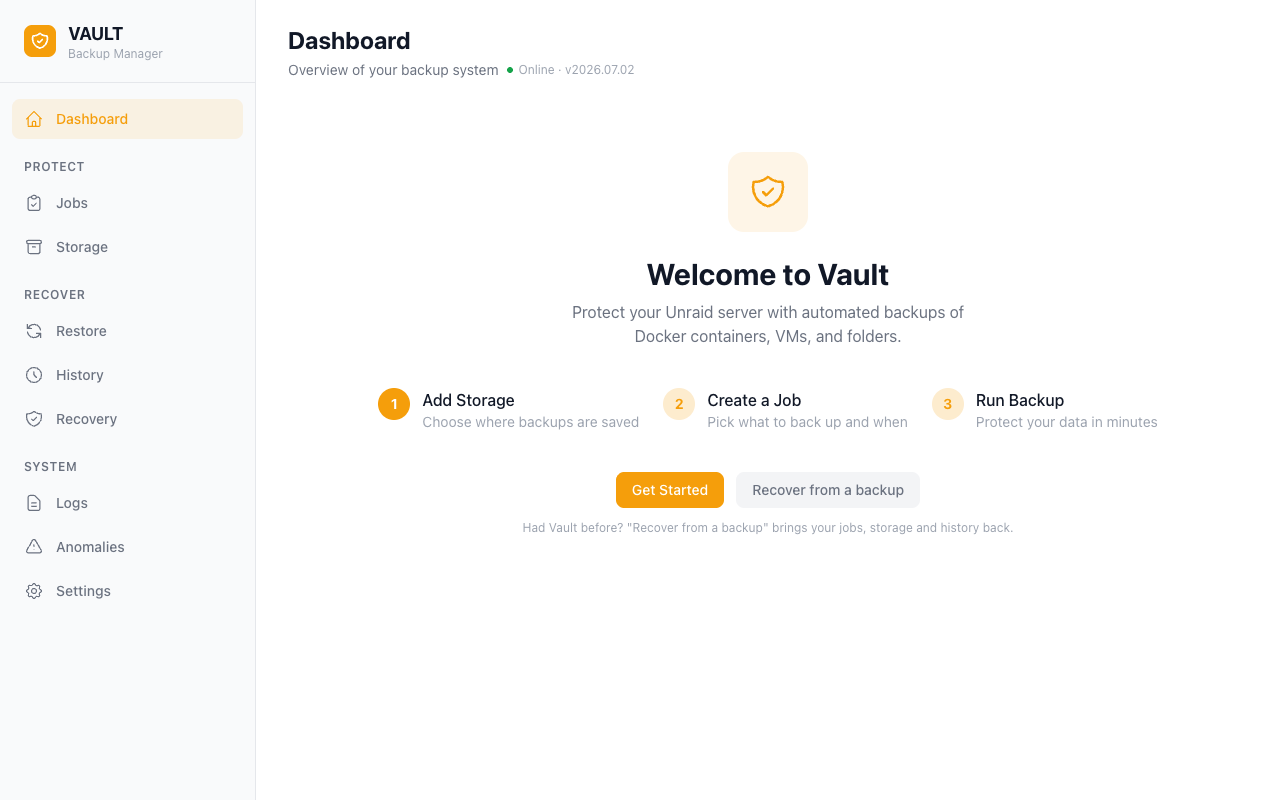
The Dashboard shows a three-step welcome guide: add storage → create job → run backup.
3. Add a Storage Destination
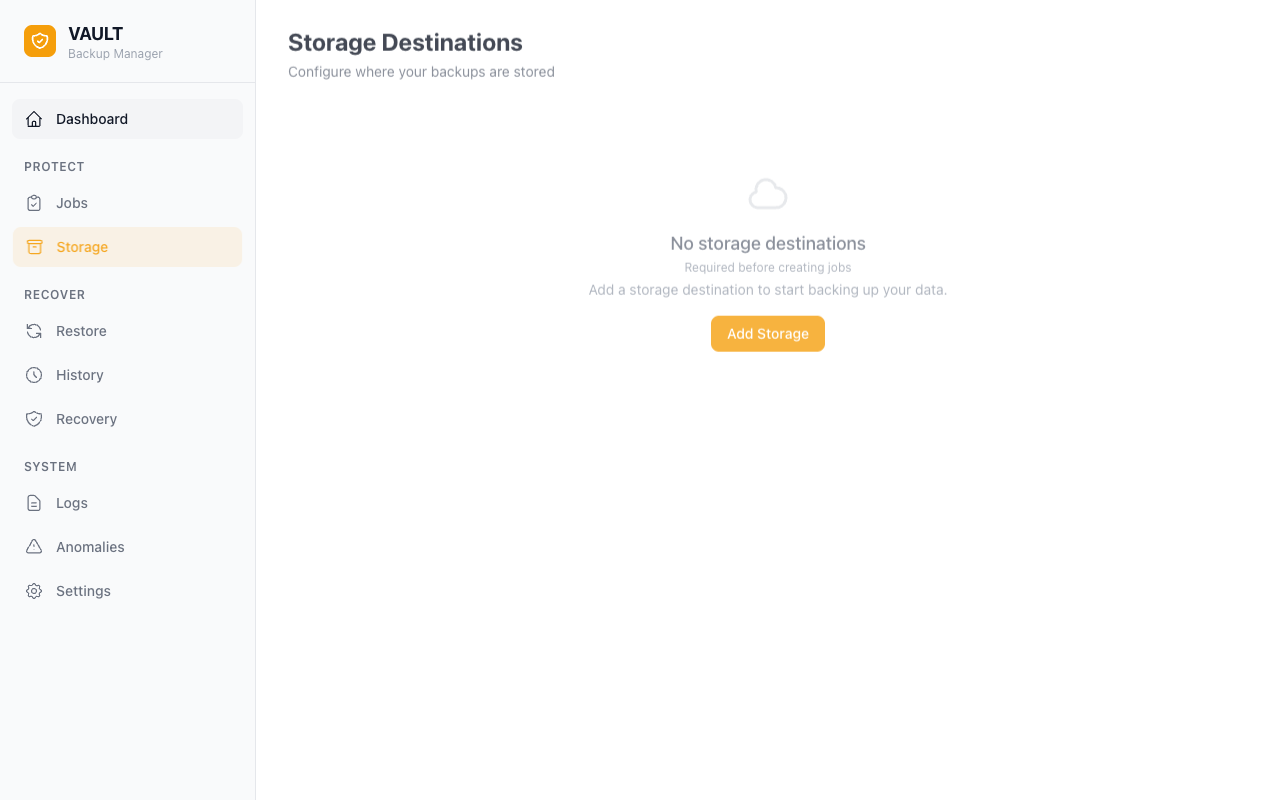
Vault needs somewhere to write your backups before you can create any jobs.
- Go to Storage in the left sidebar
- Click Add Storage
- Give it a name (e.g. "NAS Backups")
- Choose a type:
| Type | Use case |
|---|---|
| Local | A path on your Unraid array or a directly attached drive |
| SFTP | Any server reachable by SSH (another NAS, a VPS, …) |
| SMB | Windows shares and Samba servers on your LAN (Synology, TrueNAS SCALE, Windows Server) |
| NFS | Linux/NAS NFS exports |
| WebDAV | Stateless HTTP target — Nextcloud, ownCloud, Synology WebDAV, generic servers |
| S3 | AWS S3 and S3-compatible object storage — Backblaze B2, MinIO, Cloudflare R2, Wasabi, MEGA |
- Fill in the connection details. See Storage Destinations for field-by-field guidance.
- Click Test connection to verify Vault can reach the destination.
- Click Save.
4. Create a Backup Job
A job defines what to back up, where to put it, when to run, and how many copies to keep.
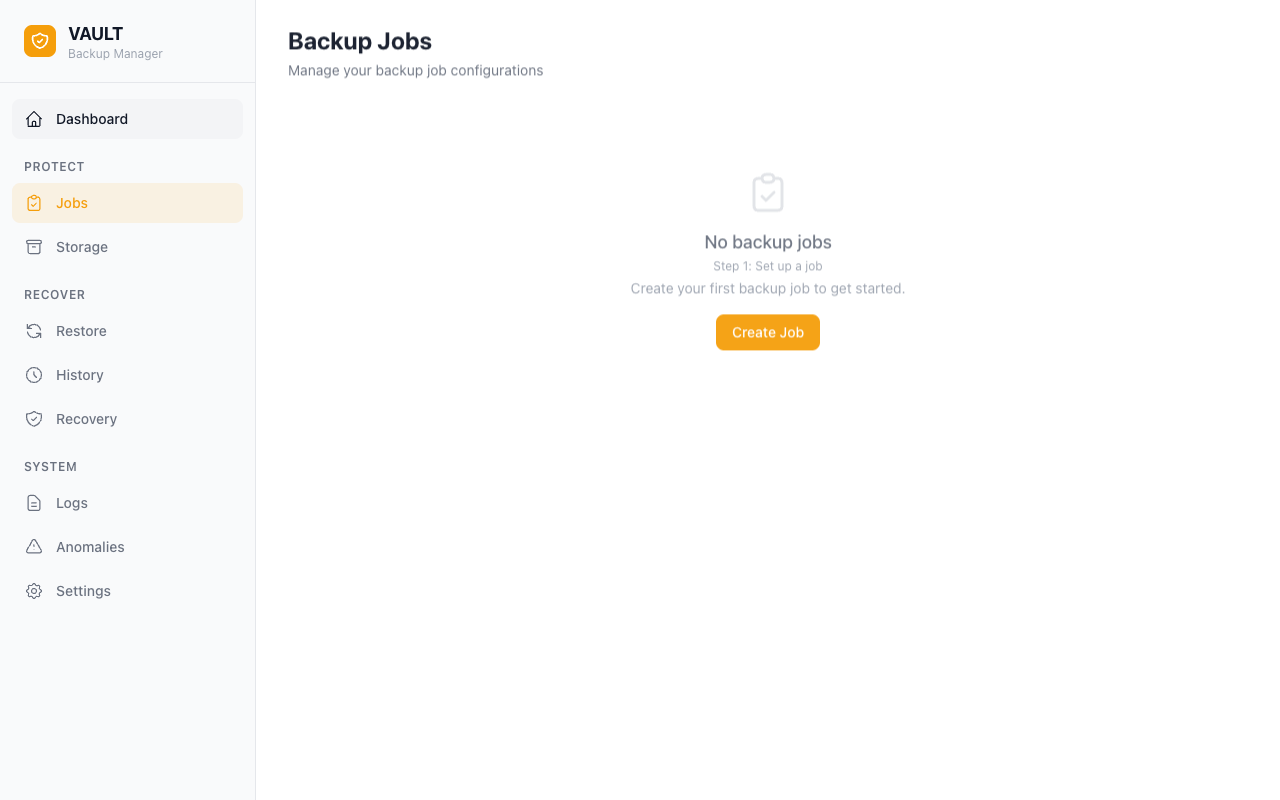
- Go to Jobs in the left sidebar
- Click Create Job
- Work through the wizard:
Step 1 — What
- Pick which Docker containers, VMs, ZFS datasets, folders, or plugins to include
- Items are listed automatically from what Vault discovers on your server
- For containers you can also list sub-paths to exclude (e.g. Plex transcode cache)
Step 2 — Where & when
- Select the storage destination you created earlier
- Set a schedule (hourly, daily, weekly, monthly, yearly, or custom cron) — or leave it empty for a manual-only job
Step 3 — How
- Choose a backup type: Full, Incremental, or Differential
- Optionally adjust compression and advanced options like retention: either keep last N restore points or a Long-Term Retention (LTR) policy that keeps a tunable number of daily / weekly / monthly / yearly snapshots
Step 4 — Name & review
-
Give the job a descriptive name (e.g. "Weekly Container Backup")
-
Review the summary and click Save.
Tip: To run a backup immediately without waiting for the schedule, open the job and click the Run Now button.
5. Run Your First Backup
- On the Jobs page, find your new job
- Click the Run Now button (play icon)
- A progress bar appears in real time via WebSocket streaming
Once complete, the job card shows the last run time, duration, and size.
6. Verify and Restore
After at least one successful backup:
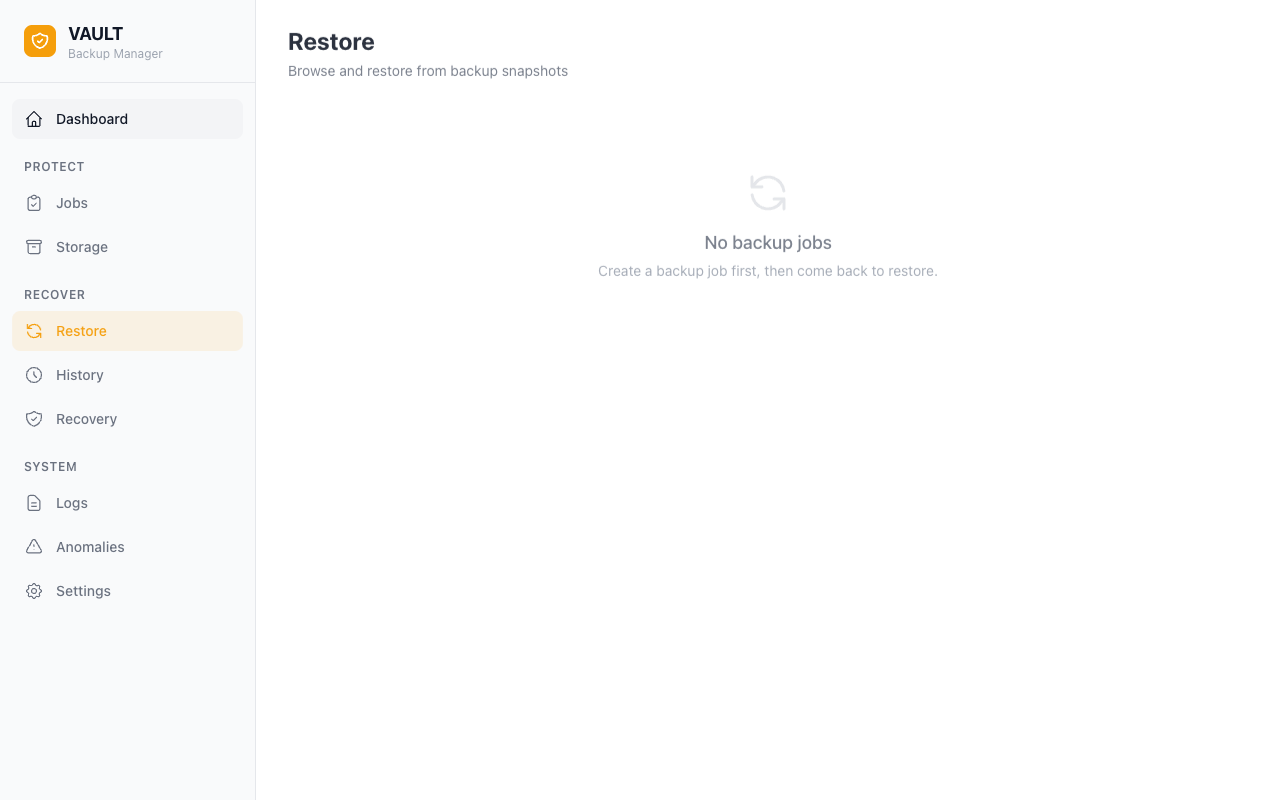
- Go to Restore in the left sidebar
- Select your job — you should see one or more restore points listed
- Click a restore point to open the guided wizard
- Choose which items to restore and confirm
Each restore point also shows chain health annotations so you can see the referenced full backup that anchors the chain for an incremental or differential point, along with chain depth tooltips.
What's Next
| Goal | Where to look |
|---|---|
| Configure SFTP, SMB, NFS, WebDAV, or S3 in detail | Storage Destinations |
| Tune jobs (retention, LTR, encryption, dedup) | Backup Jobs |
| Set up encryption | Settings → Security → Encryption |
| Enable Discord notifications | Settings → Notifications |
| Replicate backups to a second Vault server | Replication page (in-app guidance) |
| Verify a restore point on demand | Restore page → restore point → Verify |
| Run dedup maintenance from the CLI | vault dedup repair --dest <id>, vault dedup gc --dest <id> |
| Get files back with no Vault server (any OS) | Disaster Recovery |
| Export a diagnostics bundle for support | Settings → Support → Download diagnostics |
| Automate with Home Assistant | ha-vault |
| Use the REST API | API Reference |
| Use the MCP server | MCP |
Prepare for disaster now: Enable Include in DB backup on at least one storage destination so your Vault settings travel with your data, and keep your backup password somewhere safe off the server. If you ever lose the server, the Disaster Recovery guide walks you through bringing everything back.
Troubleshooting
"Vault daemon not available" after saving a job This can appear if the daemon restarts mid-request. Wait a few seconds and refresh — your job was likely saved successfully. If the error persists, check the Logs page for details.
Configuration lost after reboot
Vault uses a hybrid SQLite layout — a working DB in RAM, a periodic snapshot on a discovered cache pool, and a USB shadow on the Unraid flash drive. On boot it restores the freshest valid copy among the persisted copies (cache snapshot, rotated copies, USB shadow, and the USB-direct database left by a boot where no pool was mounted), so configuration — including the Temporary Work Area path — survives reboots and pool-mount races. You can confirm which source was used via GET /api/v1/health (startup.restoration). If you've changed the snapshot path manually, confirm it points to persistent storage under Settings → General → Database Location.
What is /mnt/user/.vault?
It is Vault's database snapshot directory, <pool>/.vault, which holds vault.db and its rotated/ copies. Unraid shows every top-level pool directory as a user share, so it also appears under /mnt/user. Don't delete it while Vault is running; move it under Settings → General → Database Location instead. .vault-stage next to it is temporary staging.
Fix Common Problems reports "Invalid folder vault-fuse contained within /mnt"
Older releases created /mnt/vault-fuse for FUSE backup mounts. Vault now mounts under /mnt/addons/vault-fuse and removes the old directory at startup once it is empty. If the warning persists, check that no backup mount is still active, then restart Vault.
Mirrored cache pool not detected
Vault scans /mnt/ for pool mounts at startup. If your pool isn't shown, make sure it's mounted before the Vault service starts, then override the snapshot path manually under Settings → General → Database Location.
Diagnostics bundle for support Settings → Support → Download diagnostics exports a ZIP containing system info, schema, recent runs, scheduler state, and the in-memory daemon log — all credential values are redacted. Attach it to bug reports.
Optional: "Backups" link in the top navigation
Vault can add a Backups entry to the Unraid top navigation bar for one-click access to the web UI, embedded inside the Unraid interface. It is off by default — enable it under Settings → Utilities → Vault → Quick Access. The entry uses Unraid's supported plugin menu extension point; no core files are modified.